
Explore myKistler customer portal

myKistler customer portal

Our features and benefits myKistler login

Utilize the full potential of your partnership with Kistler through myKistler. Our myKistler tutorial will guide you through our key features. Stay tuned for the upcoming myProducts feature, which will further enhance your product management experience.

Check out our tutorial and see how myKistler simplifies your daily tasks.

Register for the myKistler customer portal to unlock exclusive features and seamless access to our services.
What are the steps for myKistler registration and login?

The registration to myKistler customer portal is straight-forward. 

  1. Enter your email and complete the registration form.
  2. Confirm your email address by clicking the link in the verification email.
  3. The myKistler team will verify your account.
  4. You will receive a confirmation email once your account has been approved.
  5. Shop with ease: all myKistler features will be unlocked.
Go to Login page
Access the myKistler Cockpit to see your shared carts, quote list, order history, and more.
What do I find on myKistler cockpit?

The myKistler cockpit is your central entry point to all key features – easily access your

  • myProducts
  • Saved carts
  • Quote list
  • Order history
  • Manage your basic account settings, including password updates

all in one place.

[object Object]
What information is available on myKistler profile?

In the 'My profile' section, you can view your personal and company information.

Please note that once your myKistler account is created and activated, these details cannot be edited by you directly.

For any updates or corrections, simply use the contact form link provided on your profile page. You can also update your password anytime from this section.

The 'Saved Carts' feature in myKistler allows you to save carts for later use.
How can I save my cart for later on myKistler?

The 'Saved carts' feature allows you to save carts for later use. Simply give the cart a name to help you remember its contents.

In your 'Saved carts' list, accessible through the myKistler cockpit or myKistler bar menu, you'll see all saved carts along with their name, ID, date saved, quantity, and total cost.

You can reactivate any cart by clicking 'Make cart active.' If you'd like to keep a copy, select 'Keep a copy of this cart on your 'Saved carts' list  before activating. 

Once activated, the cart will appear under the cart icon, and you can proceed with the purchase as usual.

The 'myKistler Share cart' function enables you to share a link to your cart.
Can I share myKistler cart with colleagues?

The 'Share cart' function enables you to share a link to your cart.

Please note, the recipient must have a myKistler account to view the cart with prices. If he is not logged in, he will only see the list of products in your cart.

This feature allows you to easily print the page with the desired products in PDF format, making it simple to share with colleagues or your Kistler Sales representative.
What information contains myKistler "print this page" function?

The 'Print this page' feature allows you to easily export your cart as a PDF, making it simple to share with colleagues or your Kistler sales representative.

Update your password from your myKistler profile page.
Where can I update myKistler password?

You can easily update your password from your myKistler profile page or directly on the 'Registration form' page.


Discover the latest features in the myKistler Customer Portal

The instant quote feature in myKistler allows you to quickly generate a quote.
NEW | myKistler instant quotes: Can I create a quote instantly with myKistler?

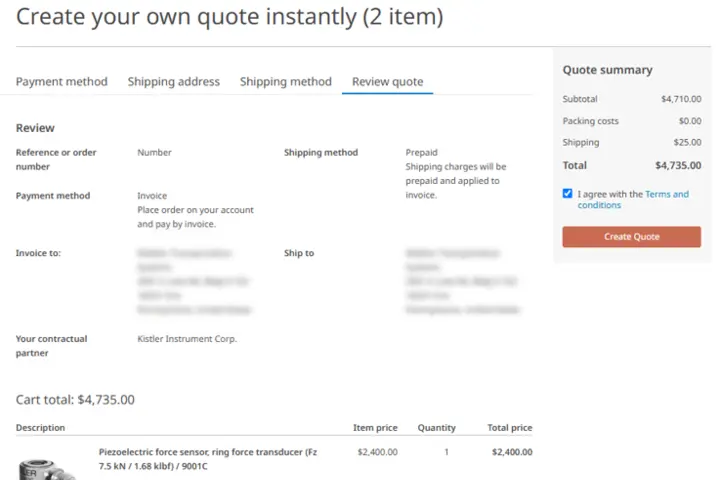
Instant sales quote: This self-service feature allows you to generate your own official quote, instantly. Just log into your myKistler account and ensure the products in your cart have available pricing.

On the cart page, simply click 'Create quote' and follow the steps to prepare your ready to order quote.
After reviewing your quote and accepting the Terms and Conditions, click 'Create quote'.

Your new quote will appear in your quote list and is sent to you via E-Mail. If you do not require additional technical consulting but do require an official quote to place your order, then this feature is made for you!

Need a consultation?

Our experts are just a click away.